CocoLime guides · Updated November 7, 2026
From an idea to a picture, then onto paper
CocoLime is an AI art studio operated by cocolime.info. Choose what to create, explore colors and styles, and keep a picture you can download or use for a drawing activity. These guides explain the tools already available in the studio.
A complete example: a rose, then a drawing outline
Start with a clear subject and a simple setting. Here are choices to try for a rose in the desert, alongside our existing studio example and an outline made from that same image. Your own AI picture will vary.
1. Choose the picture you want to make
In Subject, search for Rose and select it. Then choose the colors, background and style below.
- Subject
- Rose
- Colors
- Natural colors
- Background
- Desert dunes
- Art style
- Realistic
In Details, try the Dreamy mood. Leave extra touches and notes empty for this example.
2. See how the idea becomes a picture

3. Turn that picture into a drawing outline
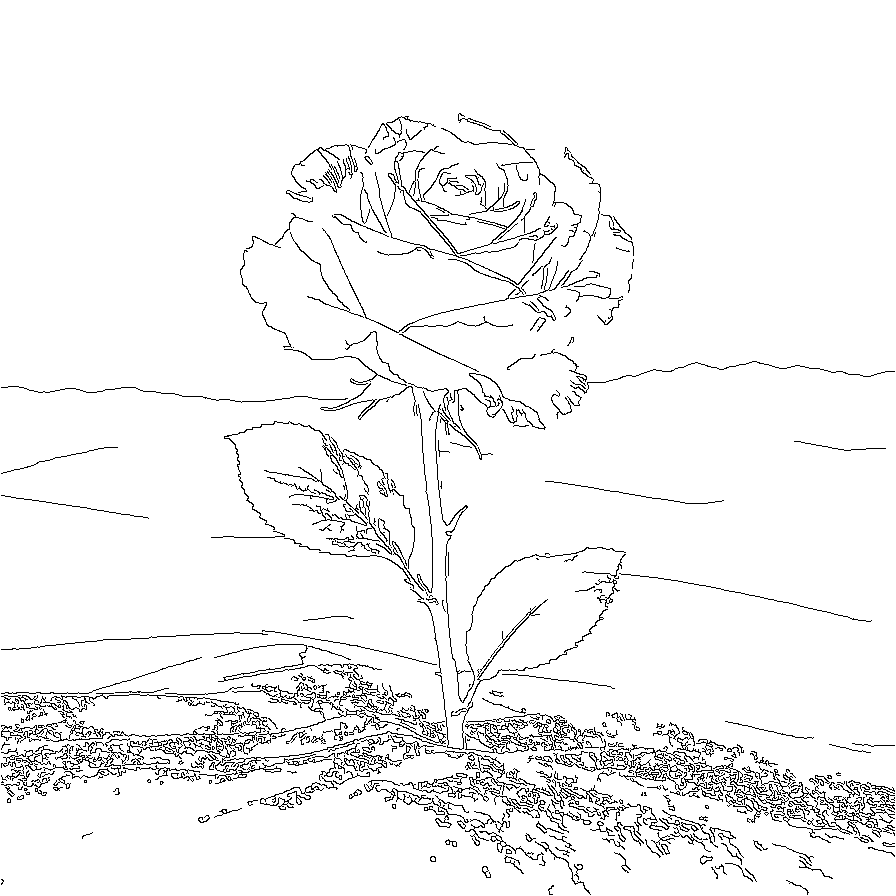
To make an outline of your own picture, open it in the studio or gallery, choose Learn to draw, then adjust Line detail before printing or downloading. Start with the outer flower shape and add the petals afterward.
1. Create your first picture
Start with one main subject. A flower or an animal is an easier first experiment than a busy scene with many objects. Choose the subject in the studio, then explore the other selections at your own pace.
- Choose your colors. Natural colors keep familiar colors for the subject. One color gives a color direction; a palette suggests a coordinated mix. A color choice does not guarantee that every part of the picture will have that color.
- Set the background. Think about where your subject belongs. An open setting gives it space; a detailed setting adds a story. Extra atmosphere choices depend on the background.
- Choose the style and details. Use the available style options and, if useful, add a short idea in the notes. Keep the notes about the picture, and leave out personal or sensitive information.
- Select Create image. Wait for the result and check its save status. If cloud saving fails, download a copy when the image is available rather than assuming it will return on another device.
For a second version, change one meaningful choice so you can see its effect. Changing only the image name does not change the picture. Each new generation can use your allowance; opening an existing picture or downloading it does not create another one.
The studio shows your current allowance. The terms explain the live credit and service limits. Signing in helps you return to your private gallery on another device. Keep downloaded copies of pictures you want to retain.
2. Choose the look you want
A style changes how the subject is represented. To explore it, keep your subject and background steady, then choose a different style for your next creation. Results can vary even when most selections stay the same.
- Watercolor: try it when you want a painted appearance, softer transitions and an expressive surface. Very small details may be less distinct.
- Pencil: try it when shapes, lines and shading matter more than strong color. A pencil-style picture is still an image, not a ready-made set of drawing instructions.
- Photography: try it when you want a photographic appearance and recognizable materials or lighting. AI images can still contain impossible details; a photographic look does not make a scene real.
In the rose example, warm petals stand out against cooler sky tones. The simple arrangement is useful when you want to focus on the flower itself. For a first drawing activity, a simpler subject and less busy background can make the outline easier to follow.
Review the actual result before sharing it. Fingers, repeated objects and lettering may need extra attention. You can download a favorite version and adjust your next idea rather than expecting exact reproduction of a previous image.
3. Turn your picture into a drawing activity
Open a picture in the studio or Gallery and choose Learn to draw. CocoLime prepares a black-and-white outline from that existing picture. It does not generate another AI image or use another generation credit.
- Adjust Line detail. Move toward Simple to reduce small marks, or toward Detailed to keep more edges. Wait for the preview to update and choose what is comfortable to draw.
- Print or download. Choose Print tracing sheet to open your device's print flow, or Download outline to save a PNG. If printing does not open, use the downloaded outline instead.
- Begin with the large shapes. For the rose, sketch the flower's outer shape, stem and leaves before adding the petals. Choose a few lines to follow rather than treating every small mark as essential.
The outline follows visible edges in the image. It is a starting point for practice, not a promise of clean vector paths or a complete drawing lesson. Add your own colors, simplify a busy area, or use the original as a reference.
Questions or feedback?
Contact cocolime.info@gmail.com. Your generated gallery stays private; sharing or downloading gives a copy to the device or app you choose.